Case management
Create cases, assign them to the team, organize hearings with automatic reminders, and keep the client up to date.
Who this guide is for
A company's legal department tracking the company's cases, deadlines, and team.
Before you start
- The Business plan.
- The general manager's account, to add and assign employees.
Creating a case
Open “Case management”, then “Add a new case”
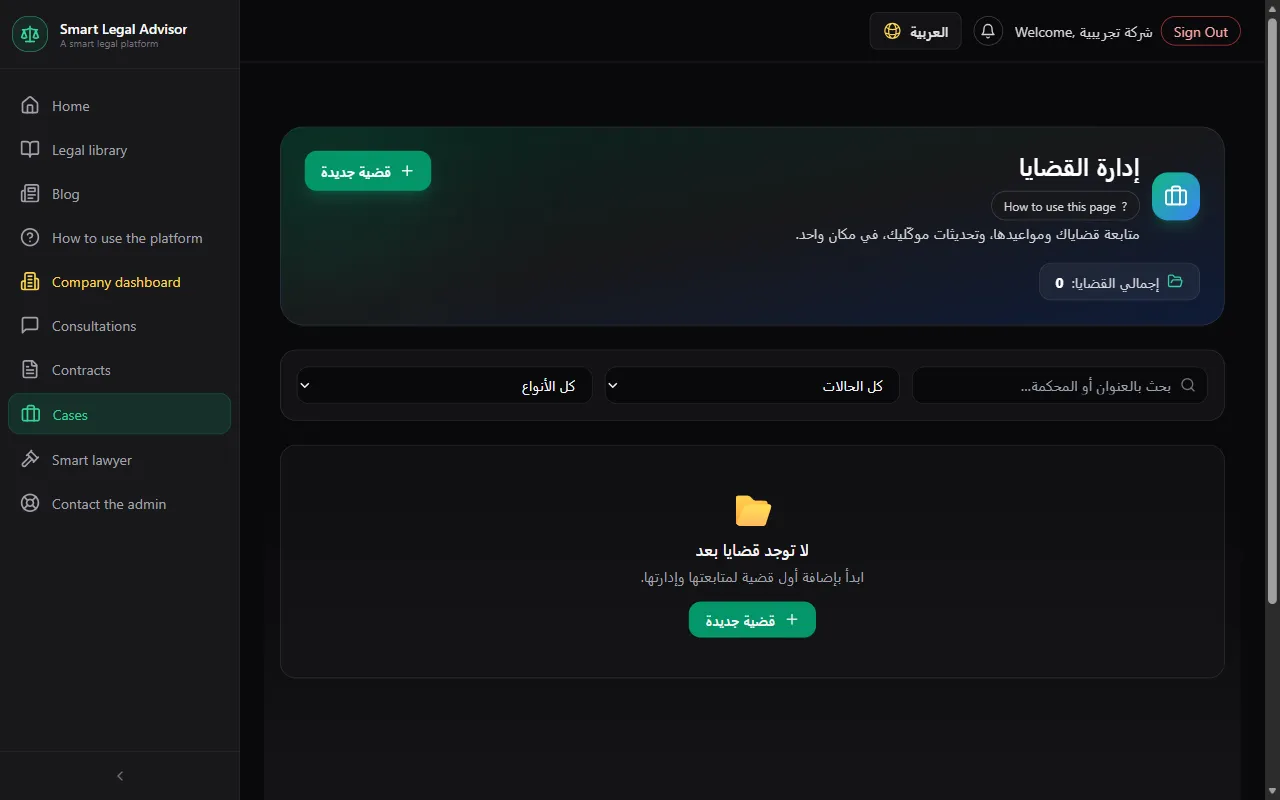
Fill in the basic details
Case title, court, and filing date (required), and its type: Civil, Criminal, Commercial, Labor, Personal status, Administrative, Real estate, Other.
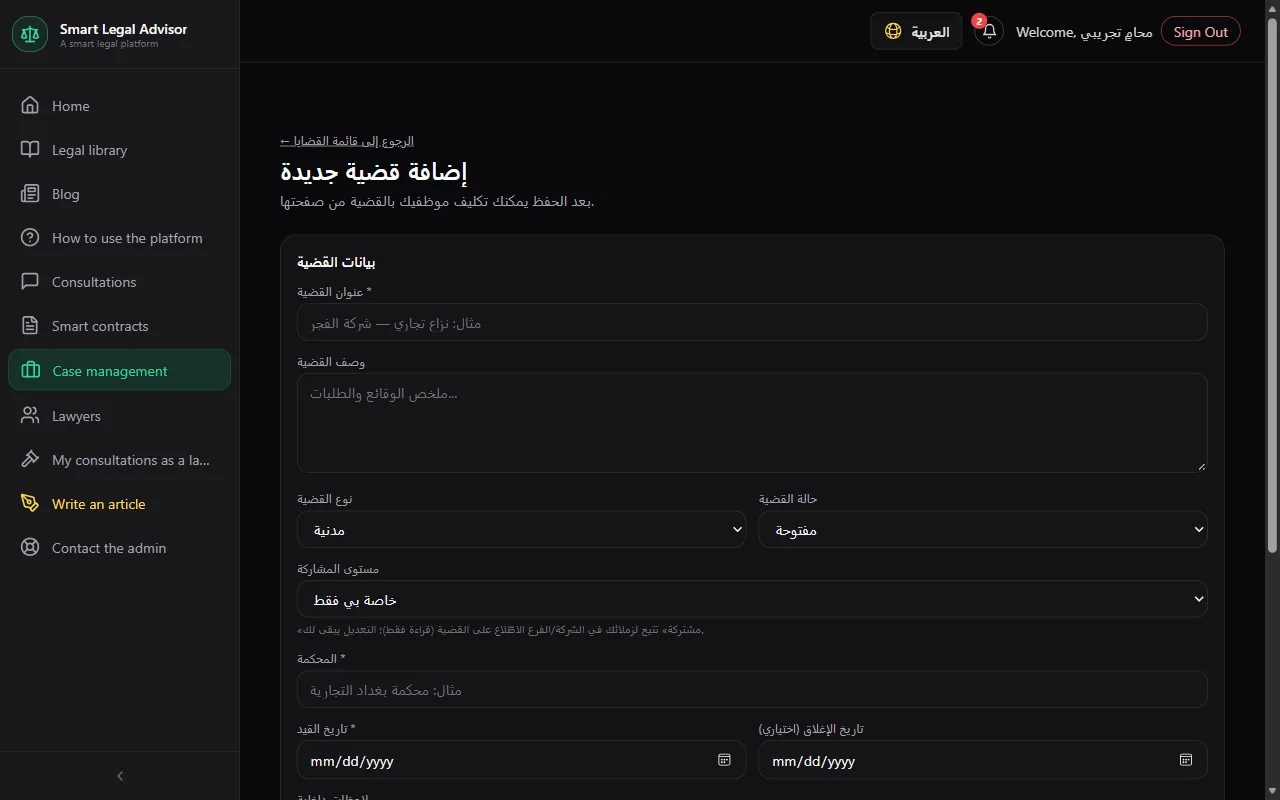
Write the case description
A summary of the facts and claims.
Internal notes (optional)
Whatever you write here is not shown to the client.
Set the sharing level
“Private to me”, or “Shared with the company (view only)”, or “Shared with the branch (view only)”. Sharing grants view access; working on the case is for the people assigned to it.
Press “Save case”
Its status later moves between: Open, In follow-up, Postponed, Reserved for judgment, Closed.
Deadlines and reminders
Add an event from “Add event / deadline”
A hearing, a deadline, a client meeting, an internal task, a judgment, an appeal, or anything else — with the date, location, and notes.
Choose when to be reminded
One hour, one day, two days, or one week before. The reminder arrives as a notification to the case owner and everyone assigned to the case.
💡 Reminders are sent once a day, so “one day before” or more is best for important deadlines.
Follow the “Past events log”
Everything that has happened in the case, in chronological order.
The case team
Employees are first added from the company dashboard.
Add your employees
From the company dashboard → “Add a new employee”: name, email, and password. The number of users depends on your plan.
Assign the employee to the case
From “Case team” → “Assign an employee to the case”, as “Lead lawyer” or “Assistant”.
Internal team notes
Write notes for the team, and make them “🔒 Private” to you if you like. They are never shown to the client.
Case documents
“Attach a document to the case”
Choose the file (a contract, judgment, memo, or photo of a document — up to 20 MB) and press “Upload and attach”.
Open the document from “Documents linked to the case”
The “Open document” button is available to everyone who can see the case, including view-only sharing.
Client follow-up portal
So your client can follow their case themselves from their “My cases” page.
Link the client's account by email
From “🔎 Client follow-up portal”, type the email the client registered with on the platform and press “Link”.
💡 The client needs an account on the platform first.
Publish updates
Write the update (such as a hearing outcome) and press “Publish update to client”. The client sees what you write here.
AI in the case
“Analyze case”
An analysis of the facts and risks, shown in the “AI analysis” section.
“Generate PDF memo” or “Generate text memo”
A draft legal memo you download or copy, then review.
Statuses you'll see and what they mean
- Open
- A new or ongoing case.
- In follow-up
- Proceedings are under way, waiting for the next step.
- Postponed
- The hearing or procedure was adjourned to a later date.
- Reserved for judgment
- Pleadings are over and the judgment is pending.
- Closed
- The case has ended.
Cost
- Case management is available on the Lawyer plan (20,000 IQD/month) and the Business plan.
- AI case analysis and memo drafting count as an AI consultation (1 point), and are unlimited on the Business plan.
Full details in the plans and points guide.
Frequently asked questions
Who can see the case?
Its owner, the general manager of the same company, and the people assigned to it. Sharing with the company or branch grants view access only.
I didn't get the reminder?
Reminders are sent once a day. Make sure you chose a reminder time for the event (not “No reminder”).
Can the AI analysis replace my professional opinion?
No. It is a helpful draft to review and edit before any use.
Ready? Put the steps into practice now.
Case management →