Receiving consultations and submitting offers
Consultation requests matching your specialization and province reach you; you submit your offer, and once it's accepted you talk to the client directly.
Who this guide is for
Accredited lawyers on the platform.
Before you start
- A lawyer account approved by the admin team.
- A complete profile: specialization, country, and province (these route the right requests to you).
Prepare your profile
Complete your professional details
Specialization, country and province, plus your bio and photo. A new photo and bio appear after the admin team approves them.
💡 Requests are routed by specialization and province; an incomplete profile still shows you all requests, but it weakens clients' trust in you.
Receiving requests and submitting an offer
Open “Lawyers”, then the “Consultation requests open for offers” tab
The open requests that match you appear: the topic, the required specialization, the location, and the request date.
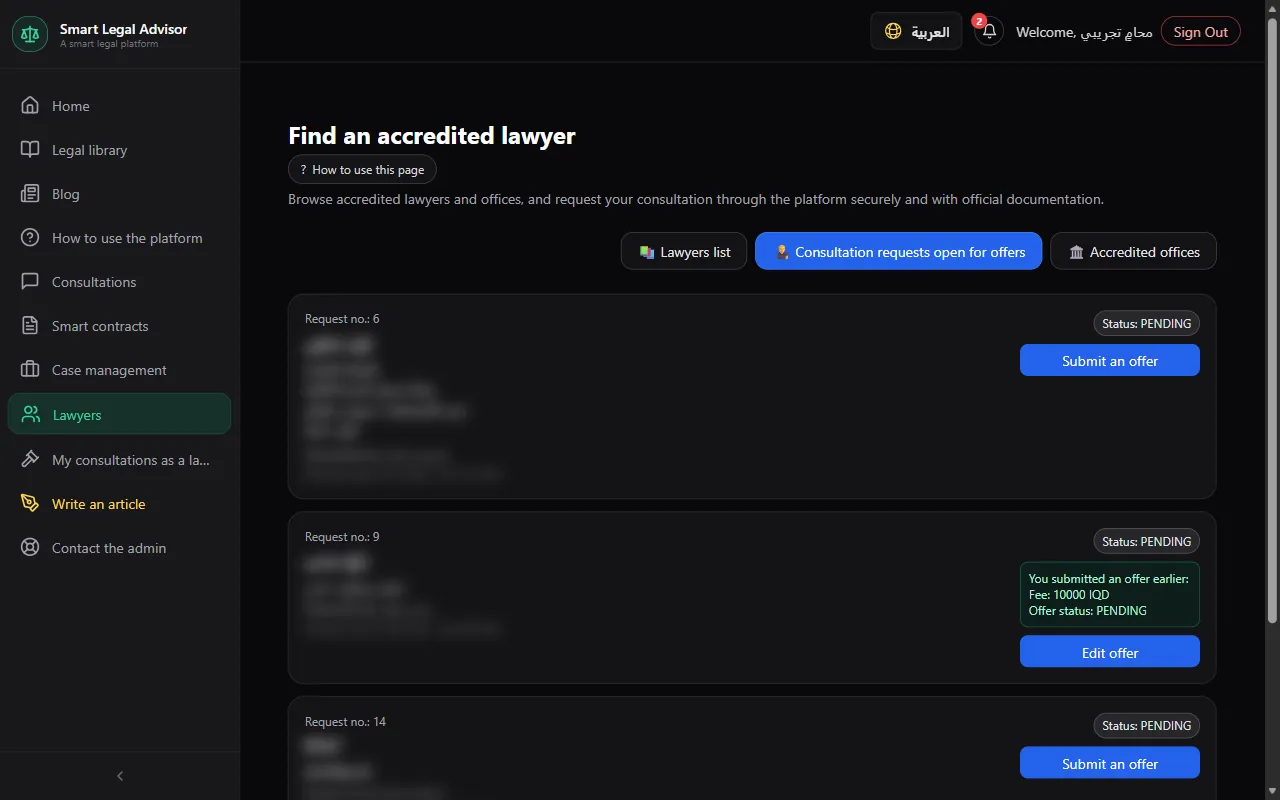
Press “Submit an offer for the consultation”
Enter the “Fee (Iraqi dinar)” and a “Note to the client” explaining what the offer covers and how long it takes, then “Send offer”.
💡 A clear offer (what's included, the timeframe, and how you'll communicate) improves its chances of being accepted.
Edit your offer if needed
As long as the client hasn't chosen yet, you'll see “You submitted an offer earlier” with an “Edit offer” button.
After your offer is accepted
A chat room with the client opens
If online payment is enabled, it opens after the client pays the fee.
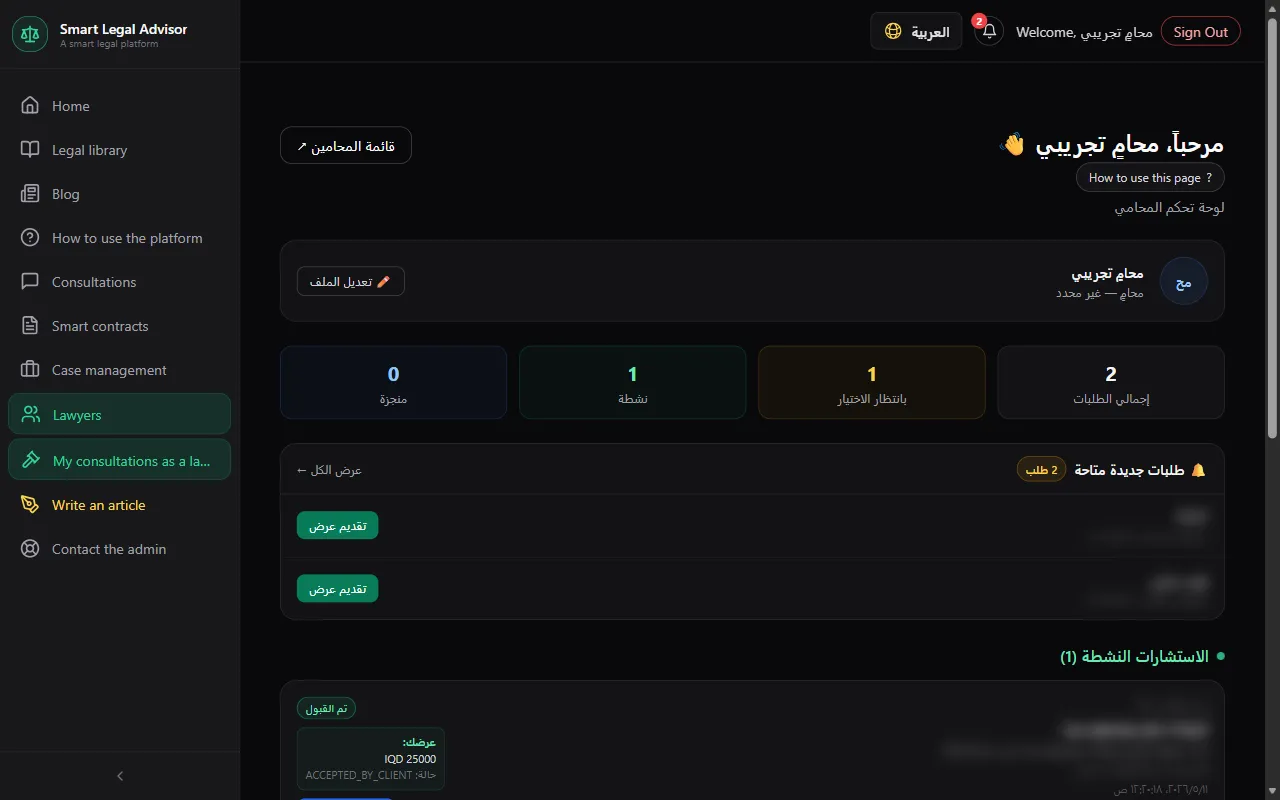
Track your consultations from “My consultations”
A dashboard with total requests, those awaiting the client's choice, active, completed, and earnings — with a chat link for each consultation.
When you're done, press “✓ Consultation completed”
The consultation moves to “Completed” and the client is notified. The client can also close it from their side.
Statuses you'll see and what they mean
- Awaiting the client's choice
- You submitted your offer and the client hasn't chosen yet.
- Accepted
- The client accepted your offer — the chat is open.
- Completed
- The consultation was closed by you or by the client.
- Canceled
- The request was canceled.
Cost
- Submitting offers is included in the Lawyer plan.
- You set your fee in the offer, and the client pays it on acceptance.
Full details in the plans and points guide.
Frequently asked questions
I don't see any requests?
Either there are no open requests matching your specialization and province right now, or your account hasn't been approved yet. Also check that your specialization and location are correct in your profile.
How do I know the client accepted my offer?
You get a notification, and the offer's status in “My consultations” changes to “Accepted” with a chat link.
Ready? Put the steps into practice now.
Open requests →